
How do I print a card?
Great job on creating your bingo card! Now, let's get those cards ready to share and enjoy. Here’s a step-by-step guide to take you through the printing process.
Getting to the print page
From your card editor, click the Print cards button at the bottom of the screen. This will take you to the print page, where you'll see three tabs along the top: Print, Caller, and Play online. You can also click Edit card to go back and make changes.
Choose your method
First, choose how you’d like to get your cards:
- Print yourself — Fast and flexible. Download a PDF and print at home or at a print shop.
- Premium card delivery — Exceptional quality. Have professionally printed cards delivered to your door.
Printing your cards
How many cards per page? Choose from 1, 2, or 4 cards per page. We automatically resize text to fit the layout you choose.
What size paper? Select from six paper sizes: Letter, Legal, A5, A4, A3, or A2. If you want four cards per page, a larger paper size like A3 or A2 will give the best results.
How many cards? Use the stepper to set the number of cards you need. You can print up to 1,000 cards per print run, and each batch is randomized fresh every time.
Optional settings
Customise your printout with these toggle options:
- Include a caller card — Get a sheet with all your call items. This is especially useful for traditional bingo games — you can cut out the items and randomly pick them to make your calls.
- Add numbers to each card — We’ll add a number to the bottom right of each card, giving them a classic bingo feel and making it easy to track which cards are in play.
- Include instructions — Add a bingo game instructions sheet for players who might be new to the game or need a refresher on the rules.
- Print edge-to-edge — Enable this to print the cards edge-to-edge. This option is only available for a single-page letter size.
Preview and print
Preview your printout: Check the PDF preview on the right side of the screen. This shows you exactly how your printout will look with the settings you’ve selected.
You can also click Sample at the top of the page to download a sample PDF before committing to a full print run.
When you’re happy with everything, hit the Print cards button to generate your PDF. Your bingo cards will be ready for action in no time!
Was this article helpful?
Related articles
Browse all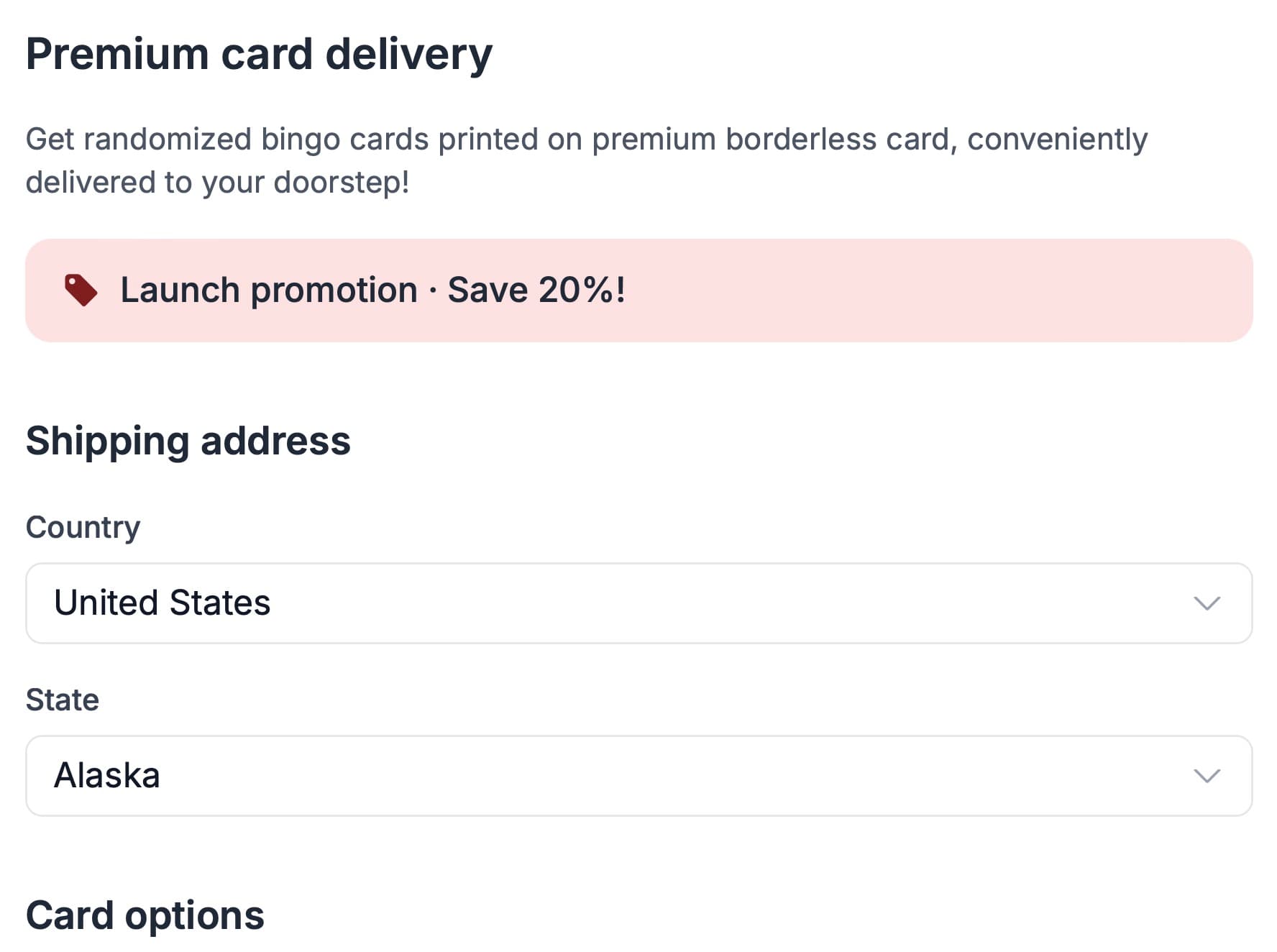
Still have questions?
Haven't you found what you're looking for in our support area? Contact us by selecting the button below.
Contact us